
If you’re looking for a simple and reliable way to install IPTV on your Amazon Firestick, this 2026 guide will walk you through the entire process step by step.
No technical knowledge is required — just follow the instructions below and you’ll be streaming in minutes.
This guide works for:
Before setting up IPTV on Firestick, make sure you have:
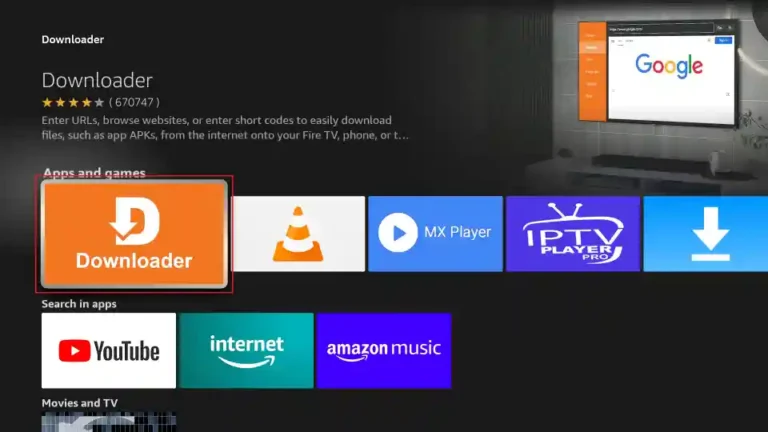
Downloader is required to install IPTV apps not available in the Amazon App Store.
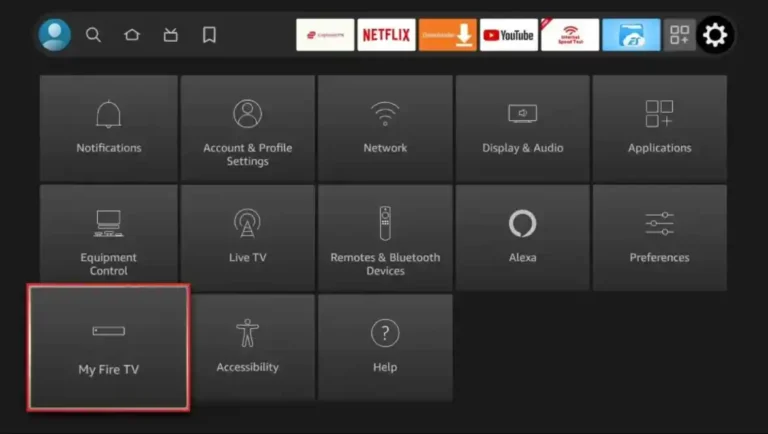
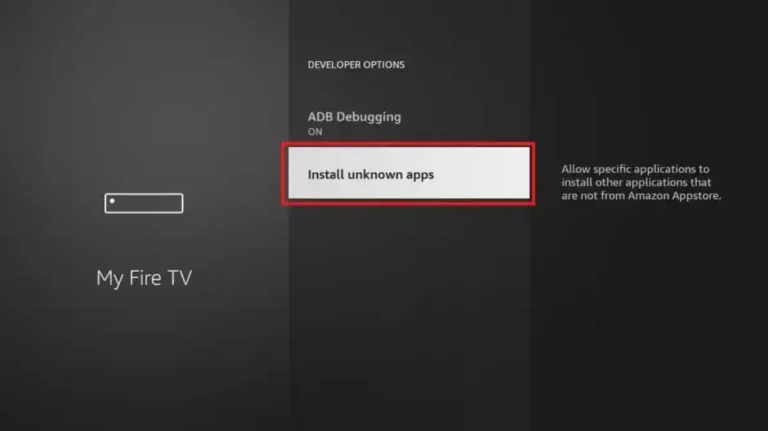
Firestick blocks third-party apps by default. You must enable installations manually.
✅ This allows IPTV apps to be installed safely.
The most commonly used IPTV apps on Firestick include:
In this guide, we’ll use IPTV Smarters Pro as an example.
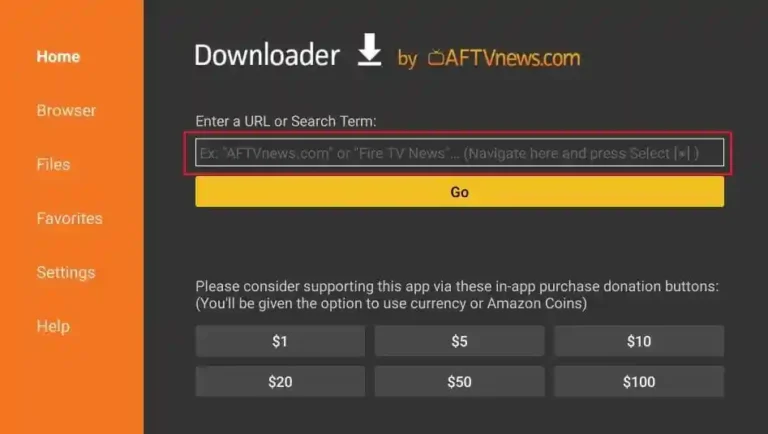
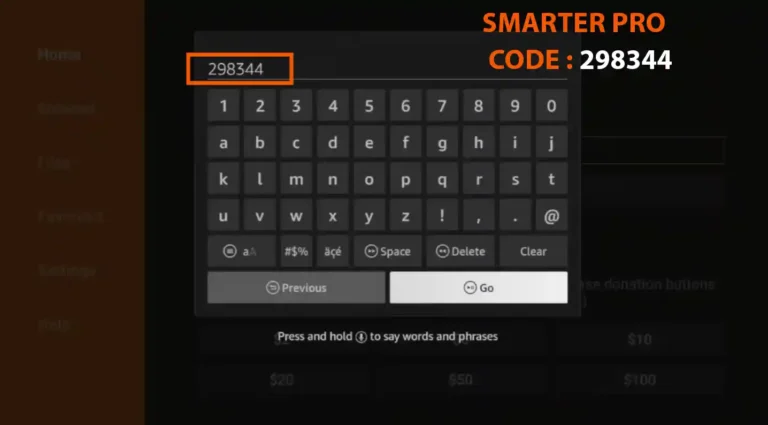
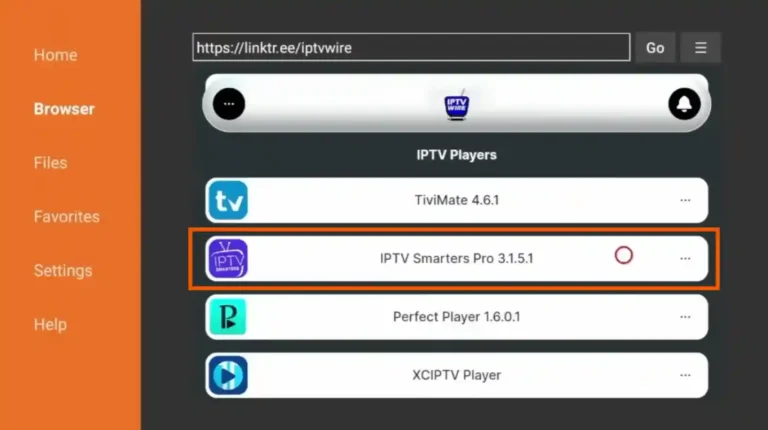
Once the app is installed:
⏱ Loading usually takes 10–30 seconds.
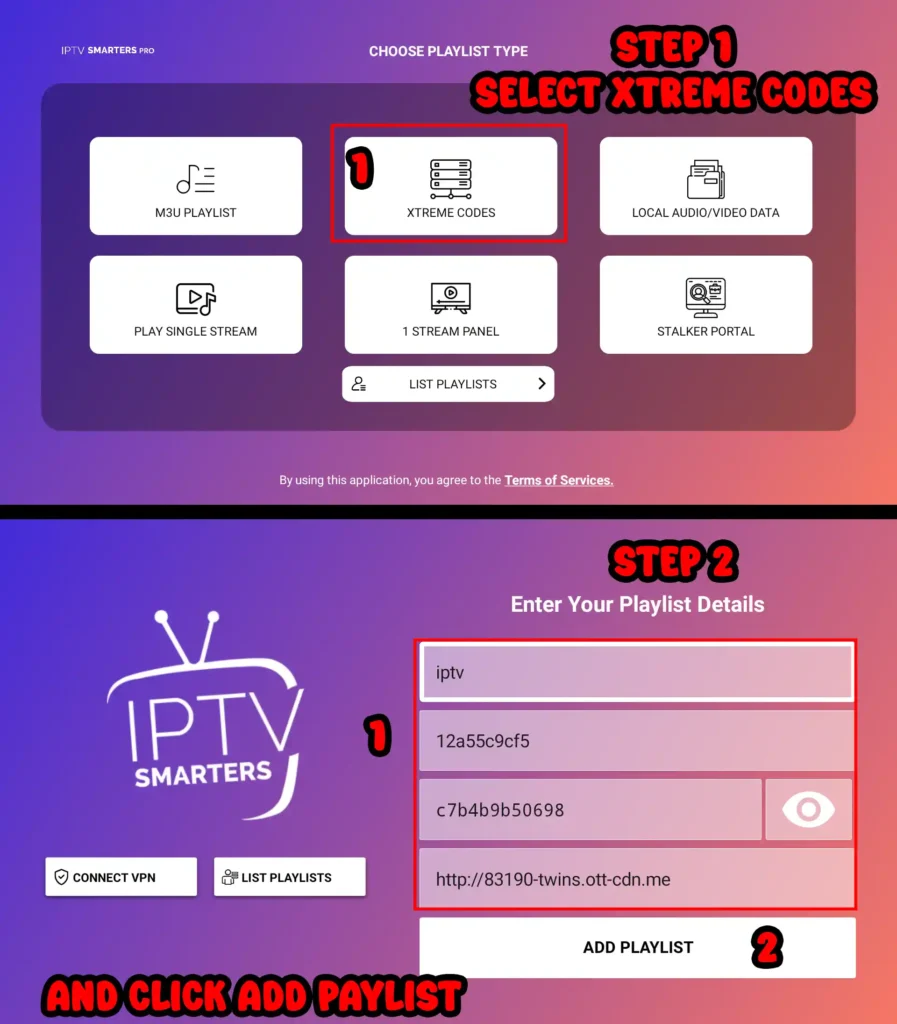
For smoother streaming, apply these settings:
These settings reduce buffering and improve quality.
Using a VPN is optional but recommended, especially if:
Choose a VPN optimized for Firestick with fast servers.
⏱ Average setup time: 5–10 minutes
No technical experience required.
Yes, IPTV works on all modern Amazon Firestick versions.
Only if the app is available in the Amazon App Store. Most IPTV apps require Downloader.
IPTV legality depends on content sources and local laws. Always use services responsibly.
Yes. Many users install multiple apps for backup.
Setting up IPTV on Firestick is quick, easy, and beginner-friendly when done correctly.
Once installed, you can enjoy live TV, movies, series, and sports directly on your Fire TV device.
Looking for a reliable IPTV service that works perfectly on Firestick?
Our premium IPTV subscription supports Firestick, Android TV, and IPTV Smarters Pro with fast servers and stable streaming.
👉 Visit KY IPTV to get started.
Yes. IPTV works on all modern Amazon Fire TV devices, including Firestick Lite, Firestick 4K, Firestick 4K Max, and Fire TV Cube, as long as the device is updated and connected to the internet.
Popular IPTV apps for Firestick include IPTV Smarters Pro, TiviMate, XCIPTV, and Flix IPTV. The best app depends on your IPTV provider and whether they support Xtream Codes or M3U playlists.
Firestick blocks third-party apps by default. Enabling “Apps from Unknown Sources” allows you to install IPTV apps that are not available in the Amazon App Store, such as IPTV Smarters Pro.
Yes, installing IPTV apps is safe if you download them from trusted sources and use reputable IPTV applications. Always avoid unknown or suspicious APK files.
A VPN is not required, but it is recommended. A VPN can help protect your privacy, prevent ISP throttling, and improve streaming stability in some regions.
For smooth streaming:
A stable connection is more important than raw speed.
Try the following:
Yes. You can install multiple IPTV apps on the same Firestick and use them as backups if one app stops working or needs maintenance.
Xtream Codes API is recommended because it is easier to manage and more stable than M3U links. Most modern IPTV apps support Xtream Codes.
IPTV legality depends on the content source and local regulations. Always use IPTV services responsibly and ensure you comply with the laws in your country.